實驗環境:cobbler server 10.1.6.234 (DELL 610 ubuntu12.04)
安裝服務器 *2 (DELL 410)
關於網絡環境,都在同一個交換機下,同一vlan中,因為要用IPMI遠程安裝,網絡環境還是要設置好的。
實驗結果:ubuntu12.04、centos 6.3安裝成功,debian6、ubuntu12.10安裝失敗,下面開始部署cobbler環境。
1 安裝cobbler
#安裝cobbler
apt-get install cobbler
#在安裝debian系列時會用到的一個軟件包
apt-get install debmirror
#安裝cobbler的web管理界面
apt-get install cobbler-web
使用到的相關環境包tftpd-hpa、dhcp3-server會自動安裝。web界面可以通過http://10.1.6.234/cobbler_web查看,不過目前你還無法查看,因為相關用戶還沒有設置,為cobbler用戶重置密碼:
#回車後會讓你重置密碼
htdigest /etc/cobbler/users.digest "Cobbler" cobbler
2 配置基本安裝環境
A 關於tftpd-hpa的配置:/etc/default/tftpd-hpa(默認無需修改,你可以根據自己的環境定制)
# /etc/default/tftpd-hpa
TFTP_USERNAME="tftp"
TFTP_DIRECTORY="/var/lib/tftpboot"
TFTP_ADDRESS="0.0.0.0:69"
TFTP_OPTIONS="--secure"
通過/etc/init.d/tftpd-hpa 腳本管理
B 關於dhcp的配置:/etc/dhcp/dhcpd.conf(需要根據你的環境進行設置,我所在的是10.1.6.x網段),不過為了使用腳本管理dhcp的運行,我們先設置/etc/default/isc-dhcp-server
/etc/default/isc-dhcp-server:因為我的cobbler server只啟動了eth0網卡,所以dhcp監聽在eth0接口上
# Defaults for dhcp initscript
# sourced by /etc/init.d/dhcp
# installed at /etc/default/isc-dhcp-server by the maintainer scripts
# This is a POSIX shell fragment
# On what interfaces should the DHCP server (dhcpd) serve DHCP requests?
INTERFACES="eth0"
/etc/dhcp/dhcpd.conf:
ddns-update-style none;
default-lease-time 600;
max-lease-time 7200;
log-facility local7;
subnet 10.1.6.0 netmask 255.255.255.0 {
  range 10.1.6.1 10.1.6.245;
  option routers 10.1.6.254;
  option broadcast-address 10.1.6.255;
  default-lease-time 600;
  max-lease-time 7200;
  next-server 10.1.6.234;
  filename  "pxelinux.0";
}
通過/etc/init.d/isc-dhcp-server 腳本管理
C 關於cobbler的配置,cobbler安裝完成後,還是有很多目錄要使用的,主要用到的解釋如下:
/var/lib/cobbler 存儲導入的鏡像的配置信息,kickstarts目錄存放kickstarts腳本,snippets目錄存放在kickstat配置文件中可以執行的腳本,config目錄提供配置信息,還有其他目錄基本上無需配置。
/var/www/cobbler 是導入發行版的操作系統的數據目錄,ks_mirror裡面是導入的發行版系統,images裡面是所有發行版的kernel和initrd,用於遠程網絡啟動。
/var/log/cobbler 是日志目錄
/etc/cobbler 是cobbler的配置文件目錄,settings是主配置文件,裡面還有一些相關配置模版,users.conf是用戶,users.digest是用戶及密碼
別看這麼多目錄,其實安裝cobbler完成後,基本配置也是不需要我們修改的,settings配置文件是主配置文件,有很多參數可以配置,詳細的選項信息可以查看:http://cobbler.github.com/manuals/2.2.3/4/2_-_Cobbler_Settings.html
D 關於IPMI的配置,因為要遠程安裝,在DELL服務器中,IPMI這個工具還是很給力的,三台機器都需要設置IPMI,因為cobbler server有操作系統,所以可以在系統中通過ipmitool命令進行設置,而兩台客戶機因為還沒有操作系統,所以要提前設置好ipmi,兩台客戶機如下設置:
設置IPMI地址及用戶密碼,開機按照提示按crtl+E進入IPMI配置界面
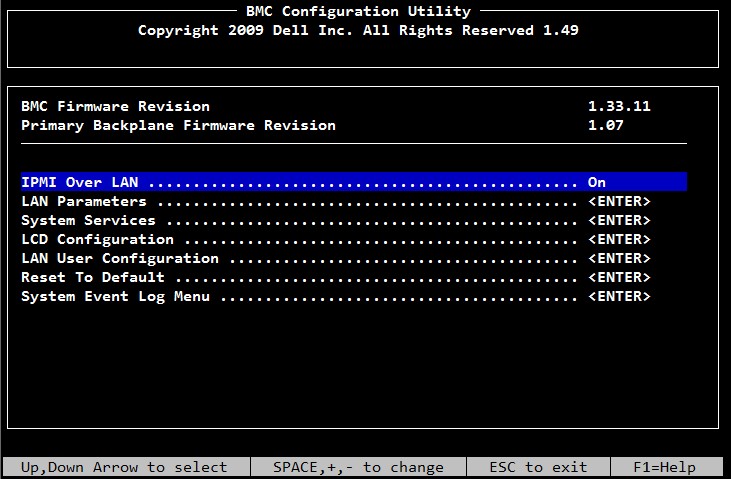
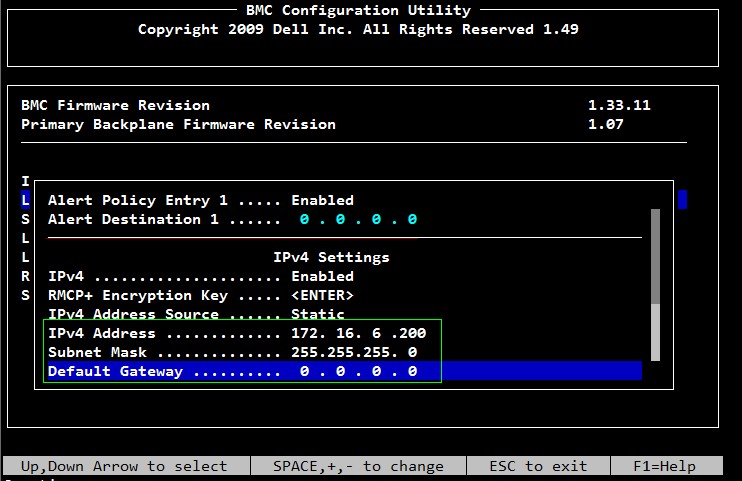
選擇LAN Parameters,設置該客戶機的IPMI地址是172.16.6.200
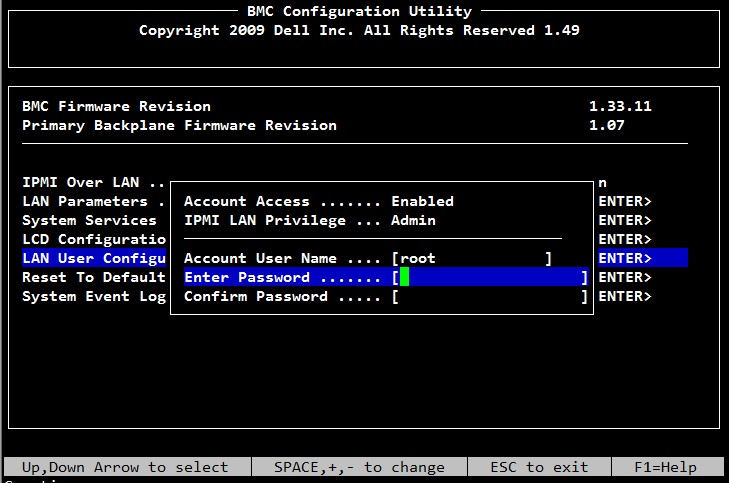
然後選擇LAN User Configuration,設置root密碼,然後保存退出。
為了在遠程能抓到客戶端的啟動過程,還需要設置BIOS,開機按F2進入BIOS進行設置
選擇Integrated Devices,因為只有一塊網卡,所以設置從NIC1 啟動PXE
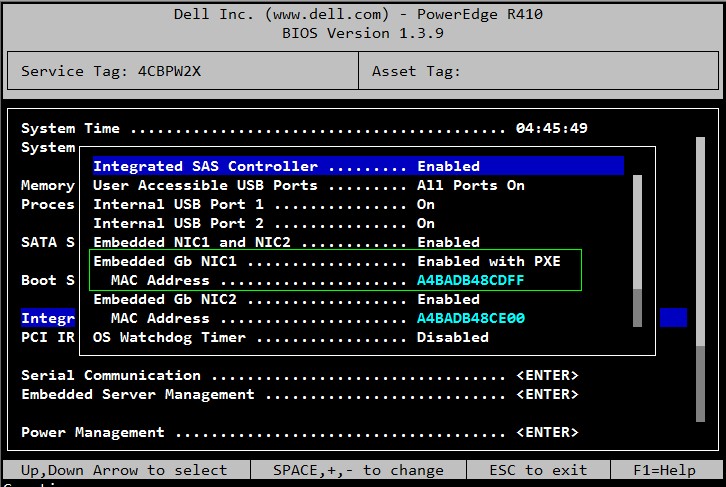
選擇Serial Communication,設置串口,然後保存退出。
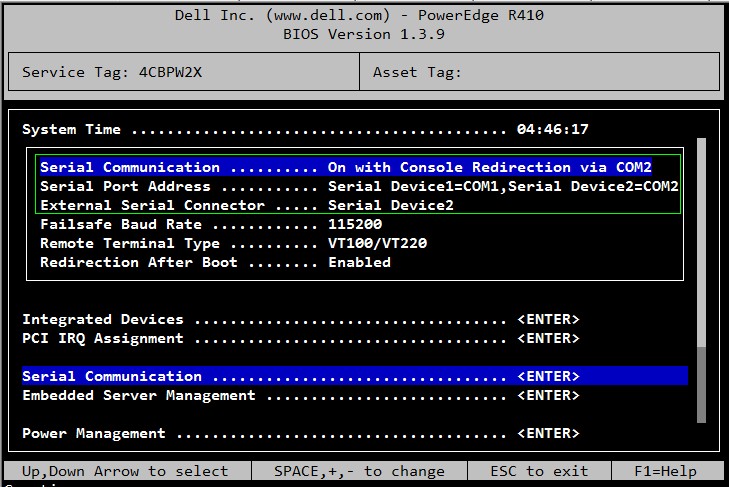
3 初始化cobbler安裝環境
前面說了我實驗了四個發行版,成功兩個,失敗兩個,為了快速安裝都是導入相關iso作為安裝源的,所以第一步是准備相關iso發行版,我的如下:
/opt
├── CentOS-6.3-x86_64-bin-DVD1.iso
├── debian-6.0.2.1-amd64-CD-1.iso
├── ubuntu-12.04-server-amd64.iso
└── ubuntu-12.10-server-amd64.iso
以ubuntu12.04為例進行講解,因為用這個iso可以成功安裝客戶機
A 導入iso鏡像
mount -o loop ubuntu-12.04-server-amd64.iso /mnt
cobbler import --path=/mnt --name=ubuntu12.04
B 查看導入的結果:cobbler list,也可以使用cobbler profile/distro list查看
cobbler list
###顯示結果如下
distros:
   ubuntu12.04-x86_64
profiles:
   ubuntu12.04-x86_64
systems:
repos:
images:
mgmtclasses:
packages:
files:
很可惜ubuntu12.04默認導入的 profile/distro配置有問題,所以我們必須修改。
修改distro
cobbler distro edit --name=ubuntu12.04-x86_64 \
--kernel=/var/www/cobbler/ks_mirror/ubuntu12.04/install/netboot/ubuntu-installer/amd64/linux \
--initrd=/var/www/cobbler/ks_mirror/ubuntu12.04/install/netboot/ubuntu-installer/amd64/initrd.gz --arch=x86_64 \
--breed=ubuntu --os-version=precise
創建/var/lib/cobbler/kickstarts/ubuntu12.04.preseed,該文件為ubuntu12.04的preseed文件。
touch /var/lib/cobbler/kickstarts/ubuntu12.04.preseed
#######文件內容如下########
### Localization
d-i debian-installer/locale string en_US
d-i debian-installer/language string en
d-i debian-installer/country string US
d-i console-setup/ask_detect boolean false
d-i keyboard-configuration/layoutcode string us
d-i localechooser/supported-locales zh_CN.UTF-8

### Network configuration
d-i netcfg/enable boolean false
d-i netcfg/choose_interface select auto
d-i netcfg/disable_autoconfig boolean true
d-i netcfg/dhcp_failed note
d-i netcfg/dhcp_options select Do not configure the network at this time

### Mirror settings
d-i mirror/country string manual
d-i mirror/http/hostname string 10.1.6.234
d-i mirror/http/directory string /ubuntu12.04
d-i mirror/http/proxy string
d-i mirror/udeb/components multiselect main, restricted
#d-i mirror/http/mirror select mirrors.163.com
#d-i mirror/suite string quantal

### Clock and time zone setup
d-i clock-setup/utc boolean true
d-i clock-setup/ntp boolean true
d-i clock-setup/ntp-server string 10.1.1.2
d-i time/zone string Asia/Shanghai

### Partitioning
d-i partman-auto/disk string /dev/sda
d-i partman-auto/method string regular
d-i partman-lvm/device_remove_lvm boolean true
d-i partman-md/device_remove_md boolean true
d-i partman-lvm/confirm boolean true
#d-i partman-auto/choose_recipe select atomic
d-i partman-auto/expert_recipe string      \
    boot-root ::                           \
           50000  50000  50000  ext4       \
                 $primary{ }               \
	          $bootable{ }	       \
                 method{ format }          \
		  format{ }   	              \
                 use_filesystem{ }         \
	         filesystem{ ext4 }	       \
                 mountpoint{ / }	       \
	      .                             \
            8000  8000 8000 linux-swap     \
	         method{ swap }             \
		  format{ }                  \
	      .                             \
	    10000 1000 1000000 ext4         \
                  method{ format }         \
	          format{ }   		\
                  use_filesystem{ }        \
		  filesystem{ ext4 }   	\
                  mountpoint{ /opt }	\
	      .                             \
d-i partman/default_filesystem string ext4

d-i partman-partitioning/confirm_write_new_label boolean true
d-i partman/choose_partition select finish
d-i partman/confirm boolean true
d-i partman/confirm_nooverwrite boolean true
d-i partman/mount_style select uuid

### Base system installation
#d-i base-installer/install-recommends boolean true
#d-i base-installer/kernel/image     string linux-generic
d-i base-installer/kernel/image     string linux-server

### Account setup
d-i passwd/root-login boolean true
d-i passwd/root-password password 123456
d-i passwd/root-password-again password 123456
d-i user-setup/allow-password-weak boolean true
d-i user-setup/encrypt-home boolean false
d-i passwd/make-user boolean false

### Package selection
tasksel tasksel/first multiselect standard
d-i pkgsel/include string openssh-server
d-i pkgsel/upgrade select none
d-i pkgsel/language-packs multiselect de, en, zh
d-i pkgsel/update-policy select none
d-i pkgsel/updatedb boolean true

### Boot loader installation
d-i grub-installer/only_debian boolean true
d-i grub-installer/with_other_os boolean true

### Finishing up the installation
d-i finish-install/reboot_in_progress note
preseed解釋可見:https://help.ubuntu.com/12.04/installation-guide/example-preseed.txt
修改profile
cobbler profile edit --name=ubuntu12.04-x86_64 \
--kickstart=/var/lib/cobbler/kickstarts/ubuntu12.04.preseed
cobbler命令有很多參數可以使用:
cobbler <distro|profile|system|repo|image|mgmtclass|package|file> ...
        [add|edit|copy|getks*|list|remove|rename|report] [options|--help]
cobbler <aclsetup|buildiso|import|list|replicate|report|reposync|sync|validateks|version> [options|--help]
常用的有:distro類似於發行版,profile類似於該發行版的一些配置,system對安裝的機器做具體配置,是根據mac地址生效的。
cobbler check 檢查配置是否正確
cobbler list 列出所有的cobbler元素
cobbler distro/profile list 單獨列出該信息
cobbler sync 同步信息 在修改完cobbler配置後,都需要同步信息
cobbler report 顯示詳細的元素信息
C 設置本地源,在ubuntu12.04.preseed配置文件中有用
cd /var/www
ln -s /var/www/cobbler/ks_mirror/ubuntu12.04 ubuntu12.04
D 修改pxelinux.cfg配置,因為使用dell的機器,如果啟動時沒有設置速率,在遠程安裝的時候,抓不到屏幕,對於410以上的機器速率是115200,2950之類是57600
/var/lib/tftpboot/pxelinux.cfg/default,在append行末添加console=ttyS1,115200
DEFAULT menu
PROMPT 0
MENU TITLE Cobbler | http://fedorahosted.org/cobbler
TIMEOUT 200
TOTALTIMEOUT 6000
ONTIMEOUT local
LABEL local
    MENU LABEL (local)
    MENU DEFAULT
    LOCALBOOT -1
LABEL ubuntu12.04-x86_64
     kernel /images/ubuntu12.04-x86_64/linux
     MENU LABEL ubuntu12.04-x86_64
     append initrd=/images/ubuntu12.04-x86_64/initrd.gz  locale=  locale=en_US priority=critical text  auto url=http://10.1.6.234/cblr/svc/op/ks/profile/ubuntu12.04-x86_64 hostname=ubuntu12.04-x86-64 domain=local.lan suite=precise console=ttyS1,115200
     ipappend 2
MENU end
E 在安裝過程中會彈出類似的xxx/binary-amd64/Packages was corrupt,這是因為在相關目錄下沒有Packages這個文件,只要進入該目錄創建Packages文件就可以
F 開始安裝遠程客戶機,在cobbler server的eth0上綁定IPMI的網段地址。
ifconfig eth0:1 172.16.6.252 netmask 255.255.255.0
####結果如下
eth0:1    Link encap:Ethernet  HWaddr 18:03:73:f0:a7:03
          inet addr:172.16.6.252  Bcast:172.16.6.255  Mask:255.255.255.0
          UP BROADCAST RUNNING MULTICAST  MTU:1500  Metric:1
          Interrupt:36 Memory:d6000000-d6012800
#####ping到客戶端ipmi地址,發現是通的
然後開兩個窗口分別執行如下IPMI命令
##1窗口,通過ipmi連接到客戶機
ipmitool -I lanplus -H 172.16.6.200 -U root -P 123456  sol activate
##2窗口,設置需哦那個pxe引導
ipmitool -I lanplus -H 172.16.6.200 -U root -P 123456  chassis bootdev pxe
##2窗口,設置重啟客戶機
ipmitool -I lanplus -H 172.16.6.200 -U root -P 123456  chassis power reset
G 享受過程吧
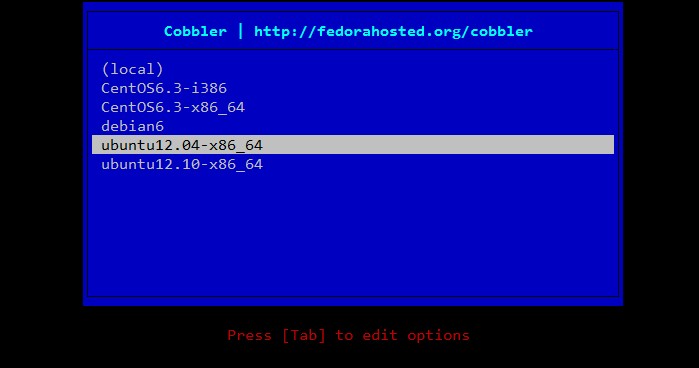
以下是我的配置文件設置的小問題,需要手動敲兩下回車:
這個我配置文件(preseed)設置的不配置網卡,不知道為什麼出現這個,後面再研究一下配置文件
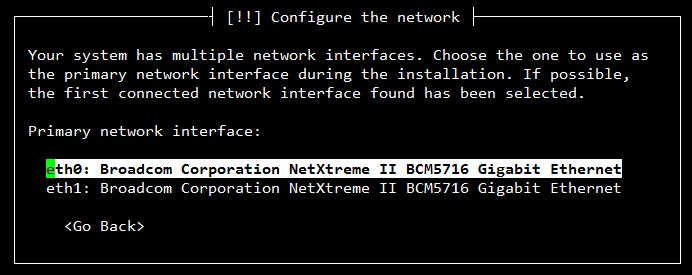
這一步不需要設置,否則安裝過程會比較慢...
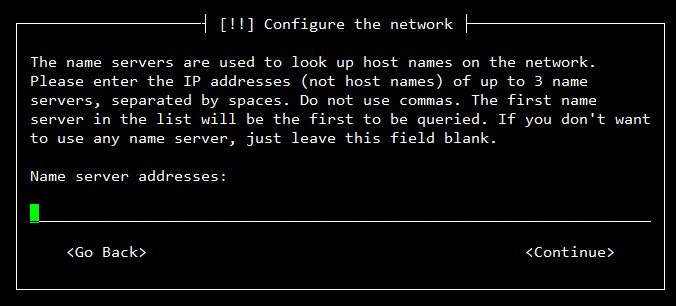
兩個回車後,就可以坐等系統重啟了...
H Centos6.3安裝
步驟的設置和ubuntu12.04的安裝過程一樣,不過不需要修改distro/profile,直接import即可。
下面是centos6.3 ks.cfg的配置文件
#platform=x86, AMD64, or Intel EM64T
# System authorization information
auth  --useshadow  --enablemd5
# System bootloader configuration
bootloader --location=mbr --driveorder=sda
# Partition clearing information
clearpart --all --initlabel
# Use text mode install
text
# Firewall configuration
firewall --disable
# Run the Setup Agent on first boot
firstboot --disable
# System keyboard
keyboard us
# System language
lang en_US
# Use network installation
#url --url=http://10.1.6.234/cblr/links/CentOS6.3-x86_64
url --url=$tree
# If any cobbler repo definitions were referenced in the kickstart profile, include them here.
#repo --name=source-1 --baseurl=http://10.1.6.234/cobbler/ks_mirror/CentOS6.3
$yum_repo_stanza
# Network information
#network --bootproto=dhcp --device=em1 --onboot=on
$SNIPPET('network_config')
# Reboot after installation
reboot
#Root password
rootpw 123456
# SELinux configuration
selinux --disabled
# Do not configure the X Window System
skipx
# System timezone
timezone  Asia/Shanghai
# Install OS instead of upgrade
install
# Clear the Master Boot Record
zerombr
# make partion
partition / --fstype="ext4" --asprimary   --size=50000
part swap  --size=8192
%pre
$SNIPPET('log_ks_pre')
$SNIPPET('kickstart_start')
$SNIPPET('pre_install_network_config')
# Enable installation monitoring
$SNIPPET('pre_anamon')
%packages
$SNIPPET('func_install_if_enabled')
$SNIPPET('puppet_install_if_enabled')
%post
$SNIPPET('log_ks_post')
# Start yum configuration
$yum_config_stanza
# End yum configuration
$SNIPPET('post_install_kernel_options')
$SNIPPET('post_install_network_config')
$SNIPPET('func_register_if_enabled')
$SNIPPET('puppet_register_if_enabled')
$SNIPPET('download_config_files')
$SNIPPET('koan_environment')
$SNIPPET('redhat_register')
$SNIPPET('cobbler_register')
# Enable post-install boot notification
$SNIPPET('post_anamon')
# Start final steps
$SNIPPET('kickstart_done')
# End final steps
這次沒有出現ubuntu12.04需要手動干預的情況,IPMI從PXE啟動後,直接坐等客戶機系統安裝完成後重啟
「梦想一旦被付诸行动,就会变得神圣,如果觉得我的文章对您有用,请帮助本站成长」







al2359(4年前 (2023-02-06))