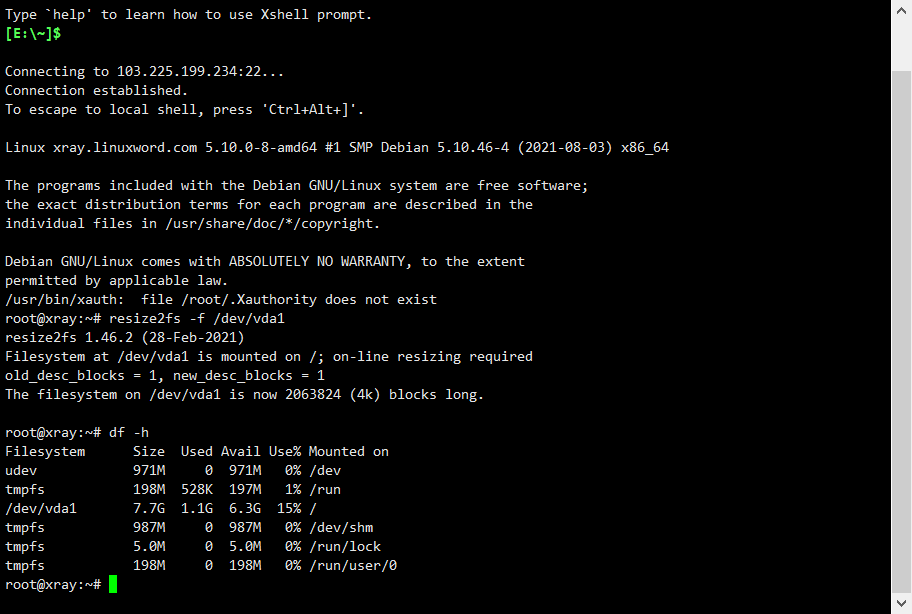
第一步:整合系统磁盘 (Debian11和Ubuntu20需要使用) ,设置后可以输入 df-h查看硬盘情况
代码:resize2fs -f /dev/vda1
第二步:安装必要组件:
#Debian/Ubuntu系统:
apt -y update && apt install -y xz-utils openssl gawk file curl wget screen && screen -S windows
#RedHat/CentOS系统:
yum -y update && yum install -y xz openssl gawk file screen && screen -S windows
说明
- 无限制全自动dd安装Windows;
- 突破没有VNC,没有救援模式,内存比dd包小的限制;
- 使用Debian Live CD中的busybox做中间媒介,经过复杂的处理使本机的网络参数传进Windows操作系统中;
- 即使没有DHCP能够让Windows获取网络参数,也能让Windows操作系统在开机的第一时间能够连通网络;
- 本站所提供的脚本及安装包均来源于网络并通过测试;
- 特别注意:脚本不适用于OpenVZ构架的服务器,请勿尝试;
说明
无限制全自动dd安装Windows;
突破没有VNC,没有救援模式,内存比dd包小的限制;
使用Debian Live CD中的busybox做中间媒介,经过复杂的处理使本机的网络参数传进Windows操作系统中;
即使没有DHCP能够让Windows获取网络参数,也能让Windows操作系统在开机的第一时间能够连通网络;
本站所提供的脚本及安装包均来源于网络并通过测试;
特别注意:脚本不适用于OpenVZ构架的服务器,请勿尝试;
安装依赖
更新系统
#Debian/Ubuntu:
apt-get update
#RedHat/CentOS:
yum update
必要依赖
#Debian/Ubuntu:
apt-get install -y xz-utils openssl gawk file
#RedHat/CentOS:
yum install -y xz openssl gawk file
一键脚本
示例脚本,补全DD包直连地址后运行即可;
wget --no-check-certificate -qO InstallNET.sh 'https://oss.suntl.com/Windows/MoeClub/InstallNET.sh' && bash InstallNET.sh -dd 'WindowsDD包直链地址'
精简版DD包
如果没有自己的DD包,可以使用博主提供的包,从以下版本中选择自己需要的系统,然后输入一键脚本即可;
# DD Windows Server 2008 R2 64位 精简版 [账户Administrator密码nat.ee]
wget --no-check-certificate -qO InstallNET.sh 'https://oss.suntl.com/Windows/MoeClub/InstallNET.sh' && bash InstallNET.sh -dd 'https://oss.suntl.com/Windows/Win_Server2008R2_sp1_64_Administrator_nat.ee.gz'
# DD Windows Server 2012 R2 64位 精简版 [账户Administrator密码nat.ee]
wget --no-check-certificate -qO InstallNET.sh 'https://oss.suntl.com/Windows/MoeClub/InstallNET.sh' && bash InstallNET.sh -dd 'https://oss.suntl.com/Windows/Win_Server2012R2_64_Administrator_nat.ee.gz'
# DD Windows Server 2016 64位 精简版 [账户Administrator密码nat.ee]
wget --no-check-certificate -qO InstallNET.sh 'https://oss.suntl.com/Windows/MoeClub/InstallNET.sh' && bash InstallNET.sh -dd 'https://oss.suntl.com/Windows/Win_Server2016_64_Administrator_nat.ee.gz'
# DD Windows Server 2019 64位 精简版 [账户Administrator密码WinSrv2019dc-Chinese]
wget --no-check-certificate -qO InstallNET.sh 'https://oss.suntl.com/Windows/MoeClub/InstallNET.sh' && bash InstallNET.sh -dd 'https://oss.suntl.com/Windows/Win_Server2019_64_Administrator_WinSrv2019dc-Chinese.gz'
# DD Windows Server 2022 64位 精简版 [账户Administrator密码nat.ee]
wget --no-check-certificate -qO InstallNET.sh 'https://oss.suntl.com/Windows/MoeClub/InstallNET.sh' && bash InstallNET.sh -dd 'https://oss.suntl.com/Windows/Win_Server2022_64_Administrator_nat.ee.gz'
# DD Windows7 sp1 64位 企业精简版 [账户Administrator密码nat.ee]
wget --no-check-certificate -qO InstallNET.sh 'https://oss.suntl.com/Windows/MoeClub/InstallNET.sh' && bash InstallNET.sh -dd 'https://oss.suntl.com/Windows/Win7_sp1_64_Administrator_nat.ee.gz'
# DD Windows10 2021LTSC 64位 企业深度精简版 [账户Administrator密码nat.ee]
wget --no-check-certificate -qO InstallNET.sh 'https://oss.suntl.com/Windows/MoeClub/InstallNET.sh' && bash InstallNET.sh -dd 'https://oss.suntl.com/Windows/Win10_2021LTSC_64_Administrator_nat.ee.gz'
Oracle甲骨文
此DD包仅适用于Oracle甲骨文DD安装Windows使用;(注意:不适用于新出的ARM框架机型)
# DD Windows7 sp1 64位 企业精简版 [账户Administrator密码nat.ee]
wget --no-check-certificate -qO InstallNET.sh 'https://oss.suntl.com/Windows/MoeClub/InstallNET.sh' && bash InstallNET.sh -dd 'https://oss.suntl.com/Windows/Oracle_Win7_sp1_64_Administrator_nat.ee.gz'
# DD Windows10 2021LTSC 64位 企业深度精简版 [账户Administrator密码nat.ee]
wget --no-check-certificate -qO InstallNET.sh 'https://oss.suntl.com/Windows/MoeClub/InstallNET.sh' && bash InstallNET.sh -dd 'https://oss.suntl.com/Windows/Oracle_Win10_2021LTSC_64_Administrator_nat.ee.gz'
# DD Windows Server 2008 R2 64位 精简版 [账户Administrator密码nat.ee]
wget --no-check-certificate -qO InstallNET.sh 'https://oss.suntl.com/Windows/MoeClub/InstallNET.sh' && bash InstallNET.sh -dd 'https://oss.suntl.com/Windows/Oracle_Win_Server2008R2_sp1_64_Administrator_nat.ee.gz'
# DD Windows Server 2012 R2 64位 精简版 [账户Administrator密码nat.ee]
wget --no-check-certificate -qO InstallNET.sh 'https://oss.suntl.com/Windows/MoeClub/InstallNET.sh' && bash InstallNET.sh -dd 'https://oss.suntl.com/Windows/Oracle_Win_Server2012R2_64_Administrator_nat.ee.gz'
# DD Windows Server 2016 64位 精简版 [账户Administrator密码nat.ee]
wget --no-check-certificate -qO InstallNET.sh 'https://oss.suntl.com/Windows/MoeClub/InstallNET.sh' && bash InstallNET.sh -dd 'https://oss.suntl.com/Windows/Oracle_Win_Server2016_64_Administrator_nat.ee.gz'
# DD Windows Server 2022 64位 企业深度精简版 [账户Administrator密码nat.ee]
wget --no-check-certificate -qO InstallNET.sh 'https://oss.suntl.com/Windows/MoeClub/InstallNET.sh' && bash InstallNET.sh -dd 'https://oss.suntl.com/Windows/Oracle_Win_Server2022_64_Administrator_nat.ee.gz'
阿里云
以下DD包适用于阿里云DD安装Windows使用;
# DD Windows10 2021LTSC 64位 企业深度精简版 [账户Administrator密码nat.ee]
wget --no-check-certificate -qO InstallNET.sh 'https://oss.suntl.com/Windows/MoeClub/InstallNET.sh' && bash InstallNET.sh -dd 'https://oss.suntl.com/Windows/Aliyun_Win10_2021LTSC_64_Administrator_nat.ee.gz'
Azure微软云
以下DD包适用于Azure微软云DD安装Windows使用;
# DD Windows Server 2008 R2 64位 精简版[账户Administrator密码nat.ee]
wget --no-check-certificate -qO InstallNET.sh 'https://oss.suntl.com/Windows/MoeClub/InstallNET.sh' && bash InstallNET.sh -dd 'https://oss.suntl.com/Windows/Win_Server2008R2_sp1_64_Administrator_nat.ee.gz'
# DD Windows Server 2012 R2 64位 精简版[账户Administrator密码nat.ee]
wget --no-check-certificate -qO InstallNET.sh 'https://oss.suntl.com/Windows/MoeClub/InstallNET.sh' && bash InstallNET.sh -dd 'https://oss.suntl.com/Windows/Oracle_Win_Server2012R2_64_Administrator_nat.ee.gz'
# DD Windows Server 2016 64位 精简版 [账户Administrator密码nat.ee]
wget --no-check-certificate -qO InstallNET.sh 'https://oss.suntl.com/Windows/MoeClub/InstallNET.sh' && bash InstallNET.sh -dd 'https://oss.suntl.com/Windows/Win_Server2016_64_Administrator_nat.ee.gz'
# DD Windows Server 2022 64位 精简版 [账户Administrator密码nat.ee]
wget --no-check-certificate -qO InstallNET.sh 'https://oss.suntl.com/Windows/MoeClub/InstallNET.sh' && bash InstallNET.sh -dd 'https://oss.suntl.com/Windows/Win_Server2022_64_Administrator_nat.ee.gz'
# DD Windows7 sp1 64位 企业精简版 Hyper-V Xen Nvme [账户Administrator密码nat.ee]
wget --no-check-certificate -qO InstallNET.sh 'https://oss.suntl.com/Windows/MoeClub/InstallNET.sh' && bash InstallNET.sh -dd 'https://oss.suntl.com/Windows/Win7_sp1_64_Hv_Xen_Nvme_Administrator_nat.ee.gz'
其它脚本
先使用以下命令及脚本重新安装系统为Debian 10然后再使用此脚本选择自定义链接Custom image安装Windows
Debian 10默认登录账号和密码:root / Pwd@Linux
# 更新系统及必要依赖
apt-get install wget sudo net-tools xz-utils openssl gawk file wget -y
apt-get update -y
apt-get upgrade -y
apt-get install -y xz-utils openssl gawk file
apt-get install -y xz-utils openssl gawk file wget screen && screen -S os
apt-get install virt-what -y
virt-what
apt-get install build-essential libpcsclite1 -y
# 一键脚本命令
wget --no-check-certificate -O AutoReinstall.sh https://git.io/AutoReinstall.sh && bash AutoReinstall.sh
# DD Windows7 sp1 64位 企业精简版 Hyper-V Xen[账户Administrator密码nat.ee]
https://oss.suntl.com/Windows/Win7_sp1_64_Hv_Xen_Administrator_nat.ee.gz
GCP谷歌云
GCP谷歌云OVH云服务器等需要指定网络参数安装的方式,示例为GCP谷歌云
# 将X.X.X.X替换为自己的网络参数.
# --ip-addr :IP Address/内网IP地址
# --ip-mask :Netmask /子网掩码
# --ip-gate :Gateway /网关
wget --no-check-certificate -qO InstallNET.sh 'https://oss.suntl.com/Windows/MoeClub/InstallNET.sh' && bash InstallNET.sh --ip-addr X.X.X.X --ip-mask X.X.X.X --ip-gate X.X.X.X -dd 'DD包 直链地址'
例:
替换--ip-addr后面的X.X.X.X为你自己的内网IP,注意查看ip-gate网关信息是否于你机器的网关相同;
在GCP谷歌云 Debian / Ubuntu 测试成功, CentOS 未测试;
账户:Administrator 密码:nat.ee
GCP谷歌云 香港
wget --no-check-certificate -qO InstallNET.sh 'https://oss.suntl.com/Windows/MoeClub/InstallNET.sh' && bash InstallNET.sh --ip-addr X.X.X.X --ip-mask 255.255.255.0 --ip-gate 10.170.0.1 -dd 'https://oss.suntl.com/Windows/Win7_sp1_64_Administrator_nat.ee.gz'
GCP谷歌云-台湾
wget --no-check-certificate -qO InstallNET.sh 'https://oss.suntl.com/Windows/MoeClub/InstallNET.sh' && bash InstallNET.sh --ip-addr X.X.X.X --ip-mask 255.255.255.0 --ip-gate 10.140.0.1 -dd 'https://oss.suntl.com/Windows/Win7_sp1_64_Administrator_nat.ee.gz'
连接上后如果遇到无法打开网页的情况,修改DNS即可
8.8.8.8
8.8.4.4
OVH
此DD包仅适用于OVH云服务器DD Win使用
说明:OVH需要使用网络参数进行安装,博主并未进行测试,这里仅提供直链安装包;
# DD Windows7 64位 精简版 [账户administrator密码www.80host.com]
https://oss.suntl.com/Windows/OVH_Win7_64_administrator_www.80host.com.gz
关于激活
可以使用本博客搭建的KMS进行激活
传送门:https://suntl.com/kms.html
如果不能使用KMS激活,可以试试下面的Key(不一定都能成功激活)
# Windows 7 企业版
KMS密钥:33PXH-7Y6KF-2VJC9-XBBR8-HVTHH / RHTBY-VWY6D-QJRJ9-JGQ3X-Q2289 / H8PDJ-H4NKW-3GKH7-YHKJ7-4C2JR
# Windows 8.1 专业版
KMS密钥:GCRJD-8NW9H-F2CDX-CCM8D-9D6T9
# Windows 10 LTSC 2019 企业版
KMS密钥:M7XTQ-FN8P6-TTKYV-9D4CC-J462D
# Windows Server 2019 数据中心版
KMS密钥:WMDGN-G9PQG-XVVXX-R3X43-63DFG
右键以管理员身份运行CMD(命令提示符),依次执行下面的命令;
slmgr.vbs -upk
slmgr.vbs -ipk KMS密钥
slmgr.vbs -ato
slmgr.vbs -dlv
Windows 7 旗舰版可能无法使用KMS进行激活,可以使用以下工具永久激活
激活工具:https://sunpma.lanzoux.com/i0ohrjljzwb
Windows服务器开启Ping功能,打开系统运行服务 Win+R 输入命令
开启Ping ##
netsh firewall set icmpsetting 8
## 关闭Ping ##
netsh firewall set icmpsetting 8 disable
第三步:在控制面板中观察VmShell的VNC在线查看服务器安装状态(至少需要等待40分钟左右);
第四步:远程登录服务器并激活Windows 系统版本:
Windows服务器开启Ping功能,打开系统运行服务 Win+R 输入命令
## 开启Ping ##
netsh firewall set icmpsetting 8
## 关闭Ping ##
netsh firewall set icmpsetting 8 disable
Windows7激活工具:https://linuxword.com/wp-content/uploads/2022/01/KMSpico.exe
运行库下载:https://linuxword.com/wp-content/uploads/2022/01/windell.exe
GooGleChrome下载:https://linuxword.com/wp-content/uploads/2022/01/GooGleChrome.exe
Microsoft .net framework4.0下载:https://linuxword.com/wp-content/uploads/2022/01/dotNetFx40_Full_x86_x64.exe
Windows10激活工具:https://linuxword.com/wp-content/uploads/2021/11/DigitalLicense.zip
「梦想一旦被付诸行动,就会变得神圣,如果觉得我的文章对您有用,请帮助本站成长」







al2359(4年前 (2023-02-06))